When enterprise data sits behind a corporate firewall or in a private on-premises data center, there’s no direct network path from AWS, even though the AI agents and dashboards in Amazon Quick can query virtually any data source. Administrators must make sure their sensitive enterprise data isn’t exposed to the public internet while being accessible for AI-driven insights and actions.
For many enterprises, routing traffic over the public internet introduces unacceptable risk. Regulatory frameworks such as HIPAA, FedRAMP, and PCI-DSS often mandate that sensitive data remain within controlled network boundaries. Even where compliance isn’t the primary driver, exposing internal data paths increases the attack surface, complicates audit trails and introduces variable latency that can degrade the user experience.
This walkthrough shows you how to connect on-premises data sources to Amazon Quick privately, without traffic traversing the public internet. It assumes you already have AWS Direct Connect or an AWS Site-to-Site VPN linking your on-premises environment to your virtual private cloud (VPC). From that foundation, we configure VPC endpoints powered by AWS PrivateLink so that Quick can reach your private resources over the AWS backbone, then layer security groups and VPC endpoint policies for defense in depth.
By the end, you will have a network architecture that keeps traffic between Quick and your on-premises data sources off the public internet, reducing the attack surface, providing consistent low-latency connectivity, and giving you a clear audit trail for compliance.
Amazon Quick and establishing private network connectivity
Amazon Quick is an AI-powered workspace that brings search, analytics, research, and automation into a single conversational experience. Understanding which components reach your private network, and how, determines the architecture in the sections that follow.
Data access in Amazon Quick falls into two paths. User-facing traffic covers anyone opening the Quick console, interacting with a dashboard, making an API call, or using Quick Desktop. All this routes through VPC endpoints (see VPC endpoints for user and API access), keeping user sessions off the public internet.
Data-fetching traffic is when Quick itself reaches into your network to pull data. This is handled by VPC connections (see VPC connections for data source access), and it’s where most of the architectural decisions lie. The features and integrations that initiate data-fetching connections are:
- Amazon Quick Sight queries on-premises databases (PostgreSQL, MySQL, SQL Server, Oracle, and others) directly through ENIs placed in your VPC. This is the heaviest consumer of VPC connections.
- Amazon Quick Flows and Amazon Quick Automate are separate automation features. Flows handle repeatable tasks. Automate handles complex, multi-system orchestration with human-in-the-loop. Both invoke action connectors, including MCP servers hosted privately in your VPC. Any workflow that calls an internal API routes through this path.
- Quick Agents underpin all conversational interactions and can invoke action connectors directly. When a custom agent calls a privately hosted MCP server or internal API, traffic flows through the VPC connection.
- Amazon Quick Index builds a unified search layer across connected sources such as Confluence, SharePoint, and Amazon Simple Storage Service (Amazon S3). For data inside your VPC or on premises, knowledge base VPC connections are currently supported only for Amazon Redshift. Sources such as Confluence, SharePoint, Box, Google Drive, OneDrive, and Amazon S3 can’t use a Quick VPC connection today (see Supported VPC data sources). You can still restrict Amazon S3 bucket access to a VPC endpoint through a bucket policy, which is a separate mechanism.
- Amazon Quick Research accesses enterprise sources behind the firewall alongside public internet data for its citation-backed reports, using the VPC connection when reaching private sources.
- Apps in Quick build interactive web applications on top of structured data and action connectors, inheriting the same VPC connectivity as Quick Sight and Flows.
- Quick Spaces organize content from the preceding features but don’t initiate their own data connections.
These two traffic paths require two distinct private connectivity mechanisms that work together:
- VPC endpoints (AWS PrivateLink): Handle user-facing traffic such as accessing the Quick website, making API calls, and administrative access. These keep user traffic off the public internet.
- VPC connections: Handle data source traffic. Amazon Quick reaches into your VPC (and by extension, your on-premises network) to fetch data from databases, Amazon Redshift knowledge base sources, and internal APIs. These are configured within the Quick console.
Configuring private connectivity
This section walks through the four building blocks in order: VPC endpoints for user and API access, VPC connections for data source access, VPC endpoints for AWS data services, and outbound access to required external domains.
Prerequisites
Before configuring private connectivity for Quick, make sure the following are in place:
- An active AWS account with an Amazon Quick Enterprise subscription (VPC connections require Enterprise edition).
- An existing VPC in the AWS Region where Quick is deployed.
- A supported AWS Region. Quick website VPC endpoints are not available in the AWS China Regions or the AWS GovCloud (US) Regions.
- An AWS Direct Connect connection or Site-to-Site VPN established between your on-premises network and your VPC. This is the private path that carries traffic from your data center into AWS.
- AWS Identity and Access Management (IAM) permissions to create and manage VPC endpoints, security groups, and Quick administration. To create VPC connections, the administrator’s IAM identity also needs
quicksight:CreateVPCConnection,quicksight:DescribeVPCConnection,quicksight:ListVPCConnections,quicksight:UpdateVPCConnection,quicksight:DeleteVPCConnection,ec2:DescribeSubnets,ec2:DescribeVpcs,ec2:DescribeSecurityGroups,iam:ListRoles, andiam:PassRolescoped to the VPC connection execution role. - Access to your organization’s DNS management (Route 53 private hosted zones or on-premises DNS forwarders), as private DNS resolution routes traffic through VPC endpoints rather than public addresses.
VPC endpoints for user and API access (AWS PrivateLink)
VPC endpoints powered by PrivateLink handle all user-facing traffic to Amazon Quick, including the website, API calls, and embedded content. They prevent users from needing to traverse the public internet to access the Amazon Quick console.
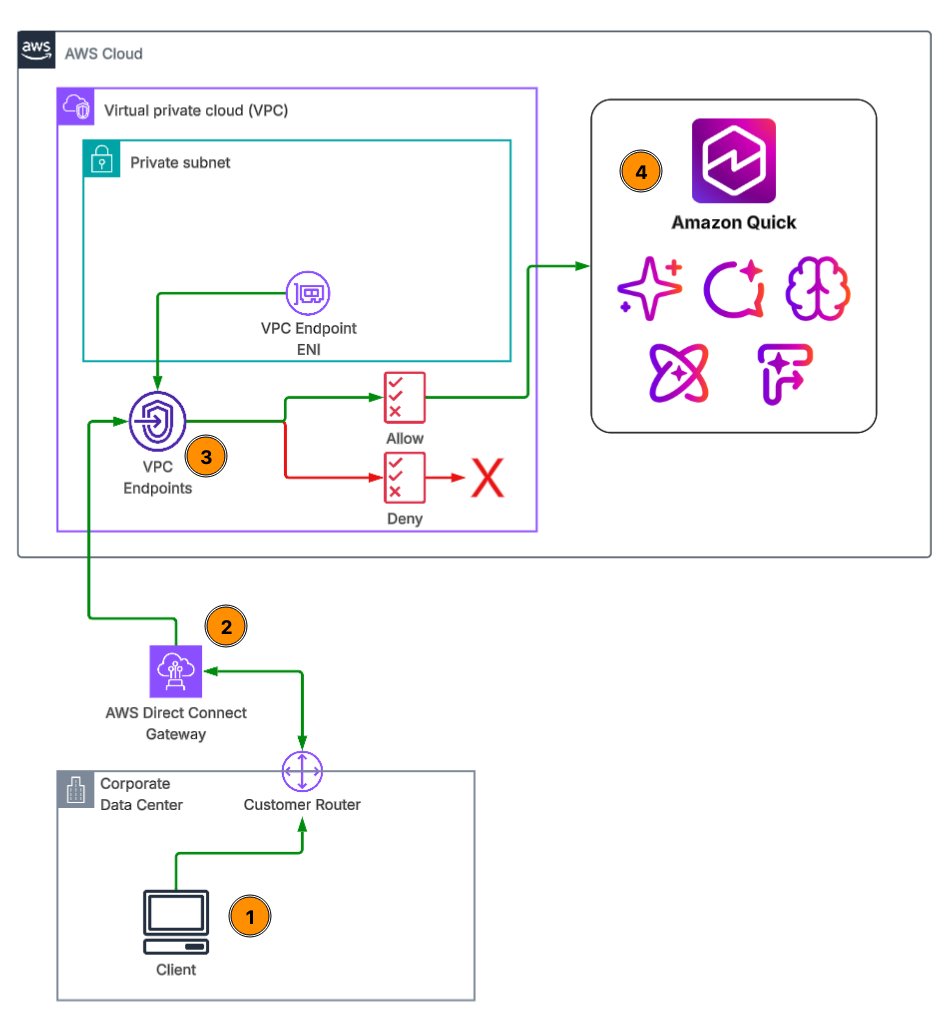
Figure 1: Private access to Amazon Quick from a corporate data center through a VPC endpoint
As shown in Figure 1: (1) a client on the corporate network sends a request to Quick; (2) the request travels over AWS Direct Connect, through the Direct Connect gateway, into your VPC; (3) the Quick VPC endpoint evaluates the endpoint policy and allows or denies the request; (4) allowed requests reach Amazon Quick over the AWS network.
Planning your VPC endpoint architecture
When planning your endpoint architecture, begin by identifying the AWS Region where your Quick account is deployed, as VPC endpoints must be in the same Region. Choose subnets across multiple Availability Zones for endpoint ENI placement, and make sure those subnets have routes to your on-premises network through Direct Connect or VPN.
Design security groups that restrict traffic on the endpoint ENIs to only required ports and source ranges. If you want all traffic routed privately (including the calls Amazon Quick makes to Amazon S3, Amazon Redshift, and Amazon Athena), plan VPC endpoints for those services as well (see Configuring data source VPC endpoints).
Creating VPC endpoints for Quick
Quick requires two interface VPC endpoints for full private access:
- Website access endpoint – Service name
com.amazonaws.<region>.quicksight-website. This handles the bulk of user traffic to the Quick console. Private DNS names for the Quick website differ from the public URL, so you must create an A record for<region>.quicksight.aws.amazon.compointing to the VPC endpoint. - API access endpoint – Service name
com.amazonaws.<region>.quicksight. This handles programmatic API calls. When private DNS is enabled, existing API calls toquicksight.<region>.amazonaws.comautomatically route through the VPC endpoint with no additional DNS configuration. For FIPS compliance, usecom.amazonaws.<region>.quicksight-fips.
Note: Not every Quick API is available through the API VPC endpoint. The following 13 APIs are not supported: the action connector APIs (CreateActionConnector, DeleteActionConnector, DescribeActionConnector, DescribeActionConnectorPermissions, ListActionConnectors, SearchActionConnectors, UpdateActionConnector, UpdateActionConnectorPermissions) and the flow APIs (GetFlowMetadata, GetFlowPermissions, ListFlows, SearchFlows, UpdateFlowPermissions). Automation that manages action connectors or flows programmatically needs a path to the public API endpoint. See Quick and interface VPC endpoints.
If administrators sign in to Amazon Quick as IAM users through the VPC, also create the AWS Management Console endpoints:
com.amazonaws.<region>.console.com.amazonaws.<region>.signin.
To create the website endpoint in the Amazon Virtual Private Cloud (Amazon VPC) console:
- Open the Amazon VPC console. In the navigation pane, under PrivateLink and Lattice, choose Endpoints, then choose Create endpoint.
- Enter a Name tag (for example, my-quicksight-vpc-endpoint) and, for Type, choose AWS services.
- Under Services, search for
com.amazonaws.<region>.quicksightand selectcom.amazonaws.<region>.quicksight-website(Figure 2).
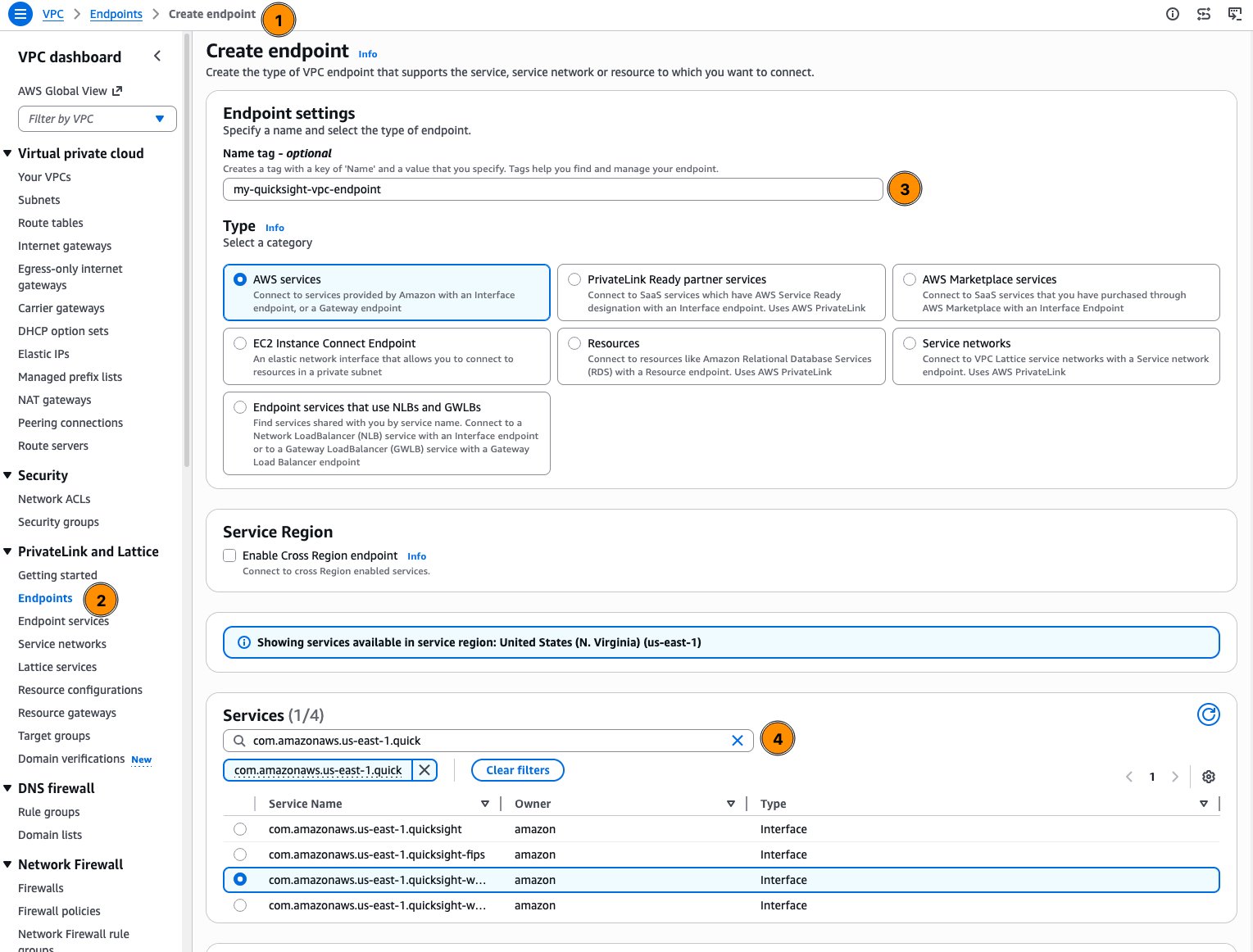
Figure 2: Naming the endpoint and selecting the Quick website endpoint service
- Under Network settings, select your VPC. Under Additional settings, keep Enable private DNS name selected.
- Select subnets in at least two Availability Zones, then select the security group for the endpoint ENIs (Figure 3).
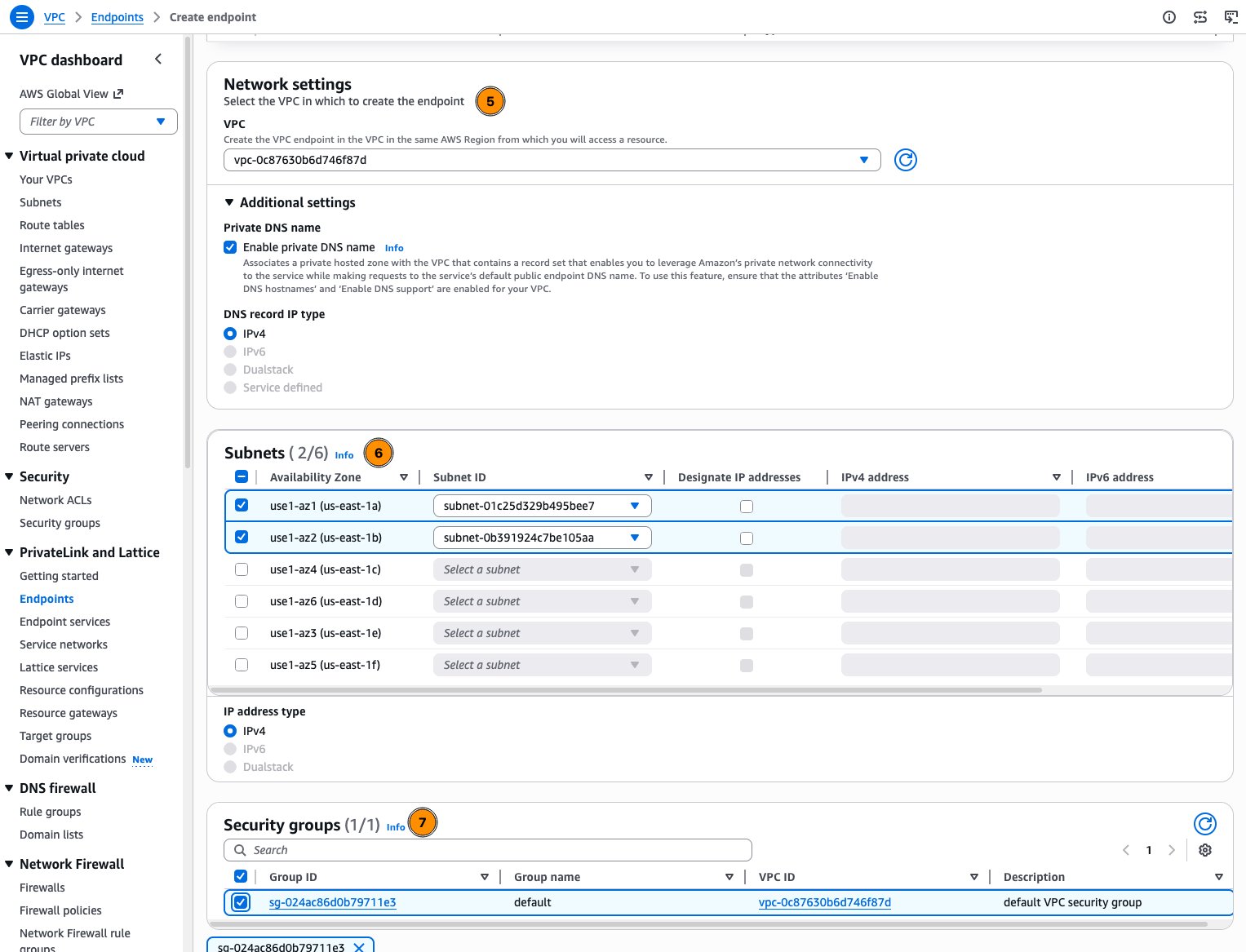
Figure 3: Selecting the VPC, private DNS, subnets, and security group for the endpoint
- Choose a Policy (see the following Setting up VPC endpoint policies section), add tags, and choose Create endpoint (Figure 4).
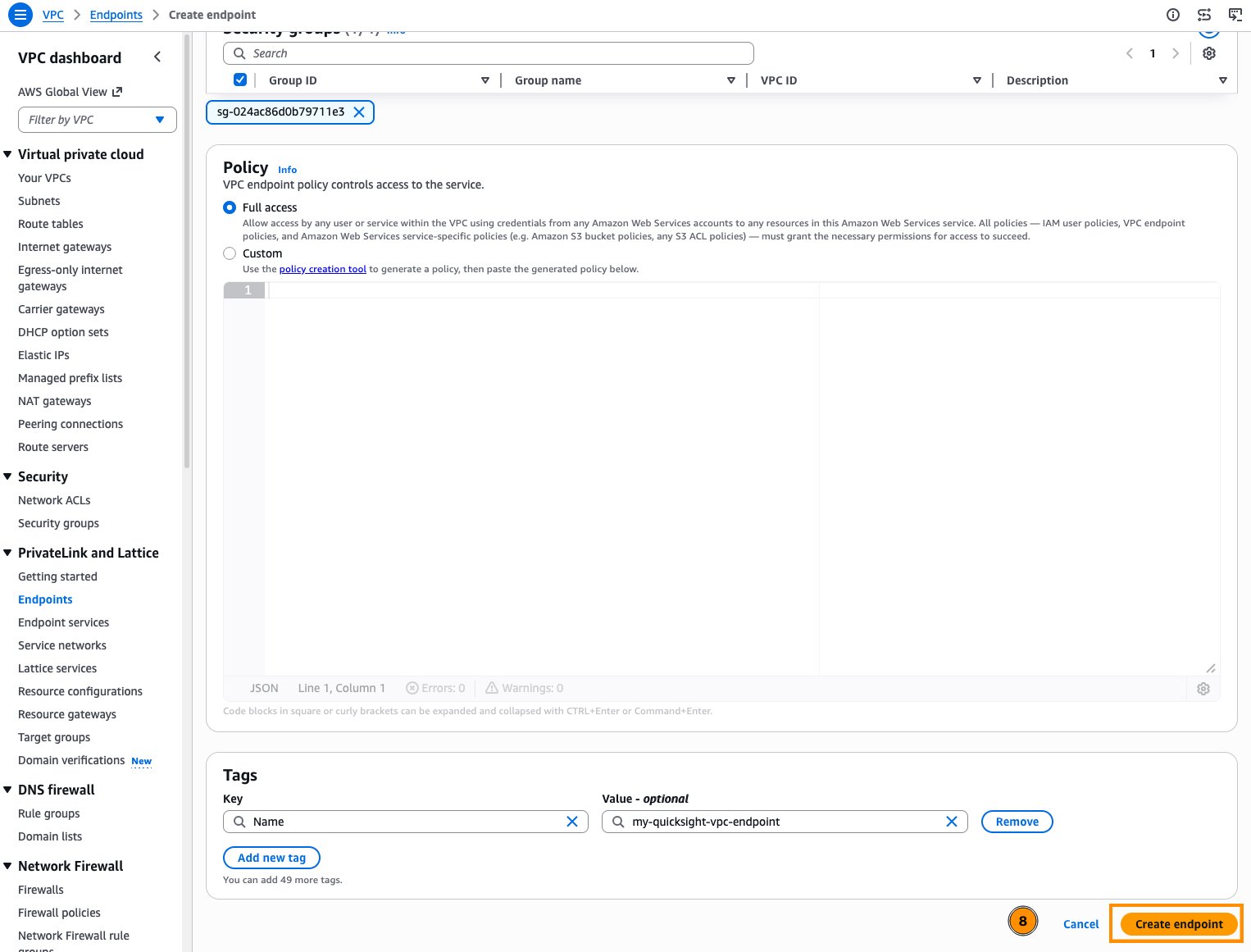
Figure 4: Choosing the endpoint policy and creating the endpoint
- Repeat these steps for the API endpoint,
com.amazonaws.<region>.quicksight.
Configuring DNS resolution
For the website endpoint, create an A record for <region>.quicksight.aws.amazon.com and point it to the VPC endpoint DNS name. This way, when users on your corporate network resolve the Quick URL, traffic routes through the private endpoint rather than the public internet. For the API endpoint, enabling private DNS on the VPC endpoint is sufficient, as API calls automatically resolve to the endpoint’s private IP addresses.
A Route 53 private hosted zone only answers queries from inside the VPCs associated with it. Because your users connect from the corporate network, configure your on-premises DNS servers to forward queries for <region>.quicksight.aws.amazon.com to a Route 53 Resolver inbound endpoint in the VPC (or host an equivalent record in your on-premises DNS). Finally, validate DNS resolution from your corporate network to confirm that requests resolve to private IPs within your VPC rather than public addresses.
To create the record in Route 53:
- In the Route 53 console, choose Hosted zones, then Create hosted zone.
- For Domain name, enter
<region>.quicksight.aws.amazon.com(for example,us-east-1.quicksight.aws.amazon.com). Scoping the zone to your Region avoids overriding other Quick host names. Choose Private hosted zone, associate your VPC, and choose Create hosted zone (Figure 5).
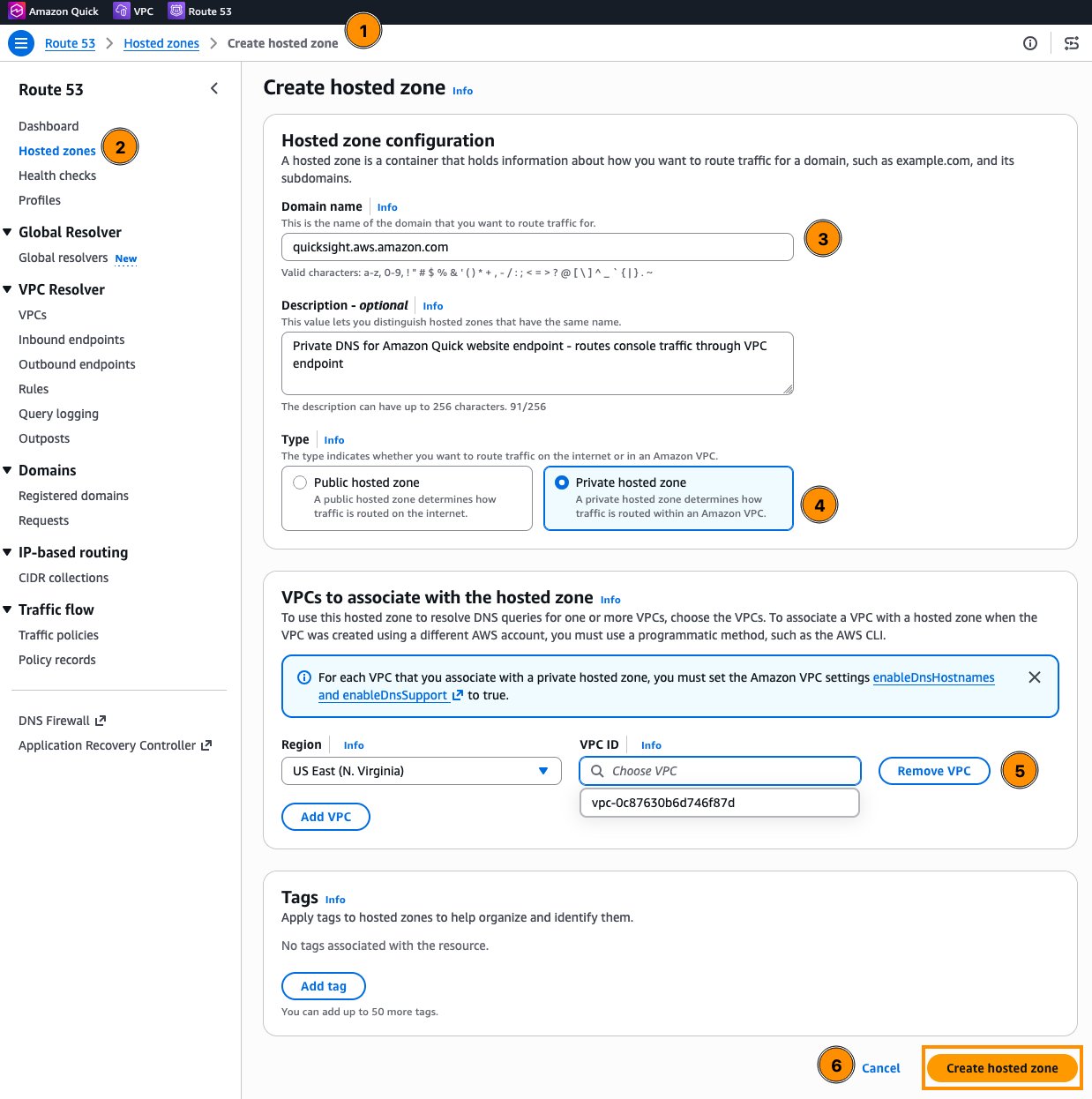
Figure 5: Creating a private hosted zone in Amazon Route 53
- In the new hosted zone, choose Create record (Figure 6).
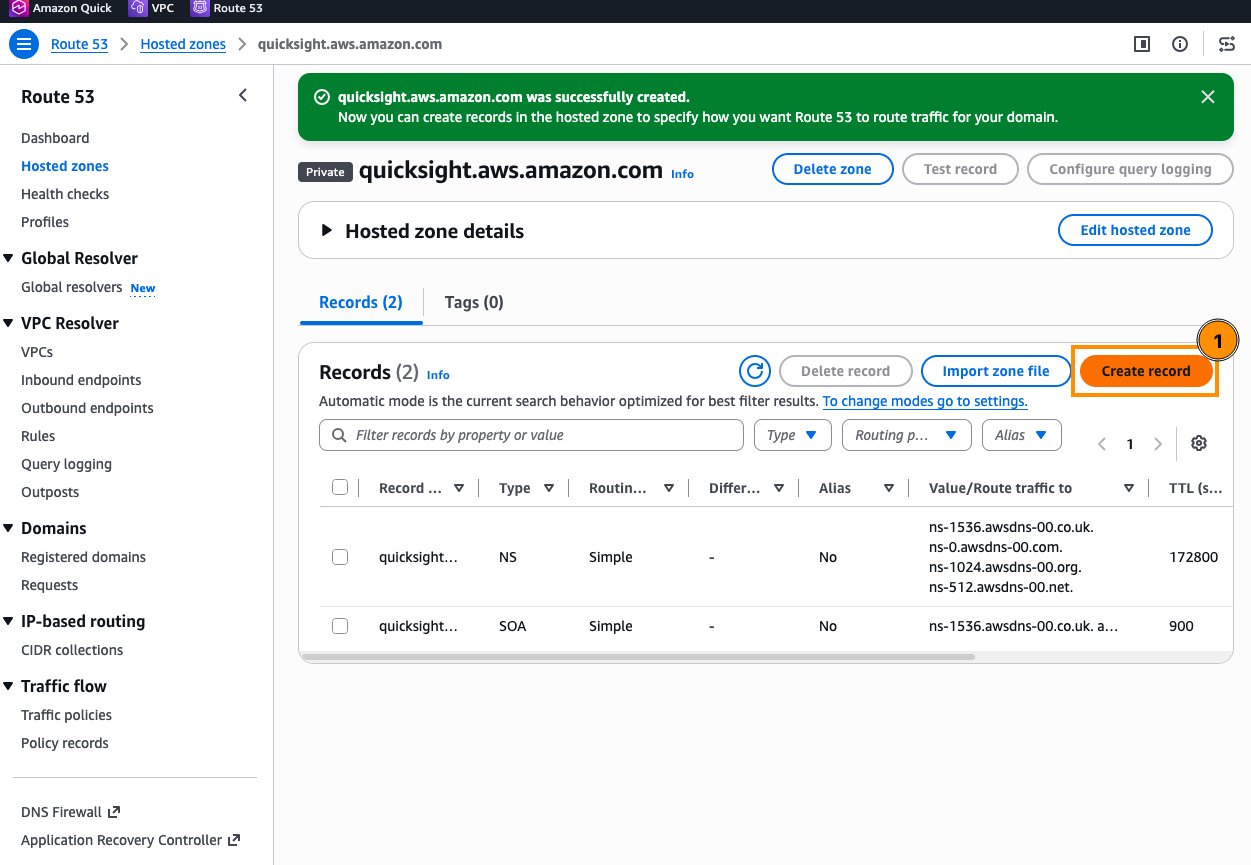
Figure 6: Creating a record in the new private hosted zone
- Leave Record name blank, choose record type A, turn on Alias, choose Alias to VPC endpoint, select your Region and the website endpoint’s DNS name, and choose Create records (Figure 7).
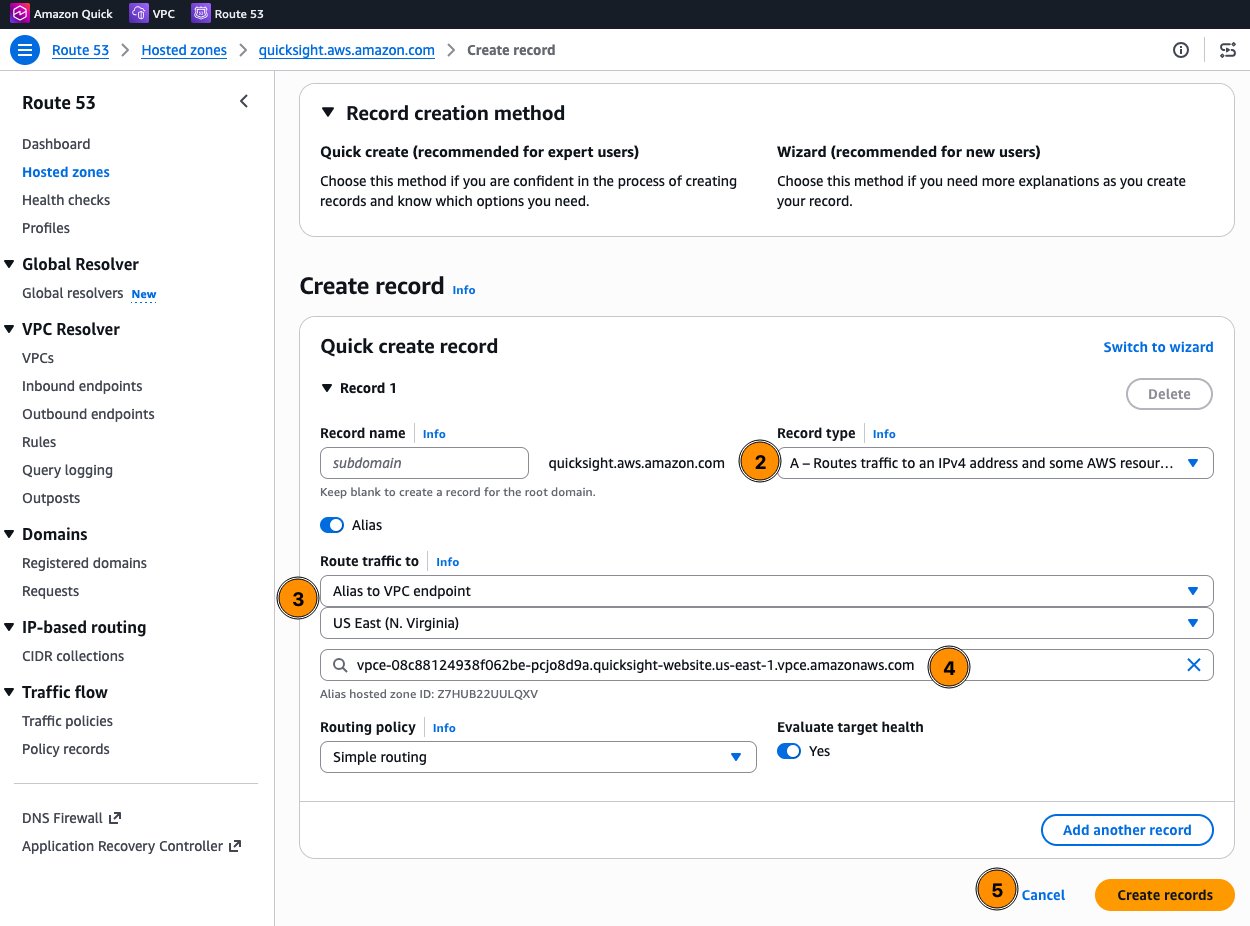
Figure 7: Creating an alias A record that points to the Quick website VPC endpoint
Setting up VPC endpoint policies
VPC endpoint policies restrict which accounts or organizations can use the endpoint. For Quick, policies can be scoped by AWS account ID or Organization ID. To change a policy, open the endpoint in the Amazon VPC console, choose the Policy tab, and choose Edit Policy (Figure 8).
Important limitation: For the Quick website endpoint, the
Principal,Action, andResourcefields must all be set to*. Conditions might only be specified against theaws:PrincipalAccountoraws:OrgIdattributes. More restrictive action-level policies are only supported on the API endpoint.
Website endpoint policy example:
{
    "Version": "2012-10-17",
    "Statement": [
        {
            "Effect": "Allow",
            "Principal": "*",
            "Action": "*",
            "Resource": "*",
            "Condition": {
                "StringEquals": {
                    "aws:PrincipalAccount": ["012345678901"]
                }
            }
        }
    ]
}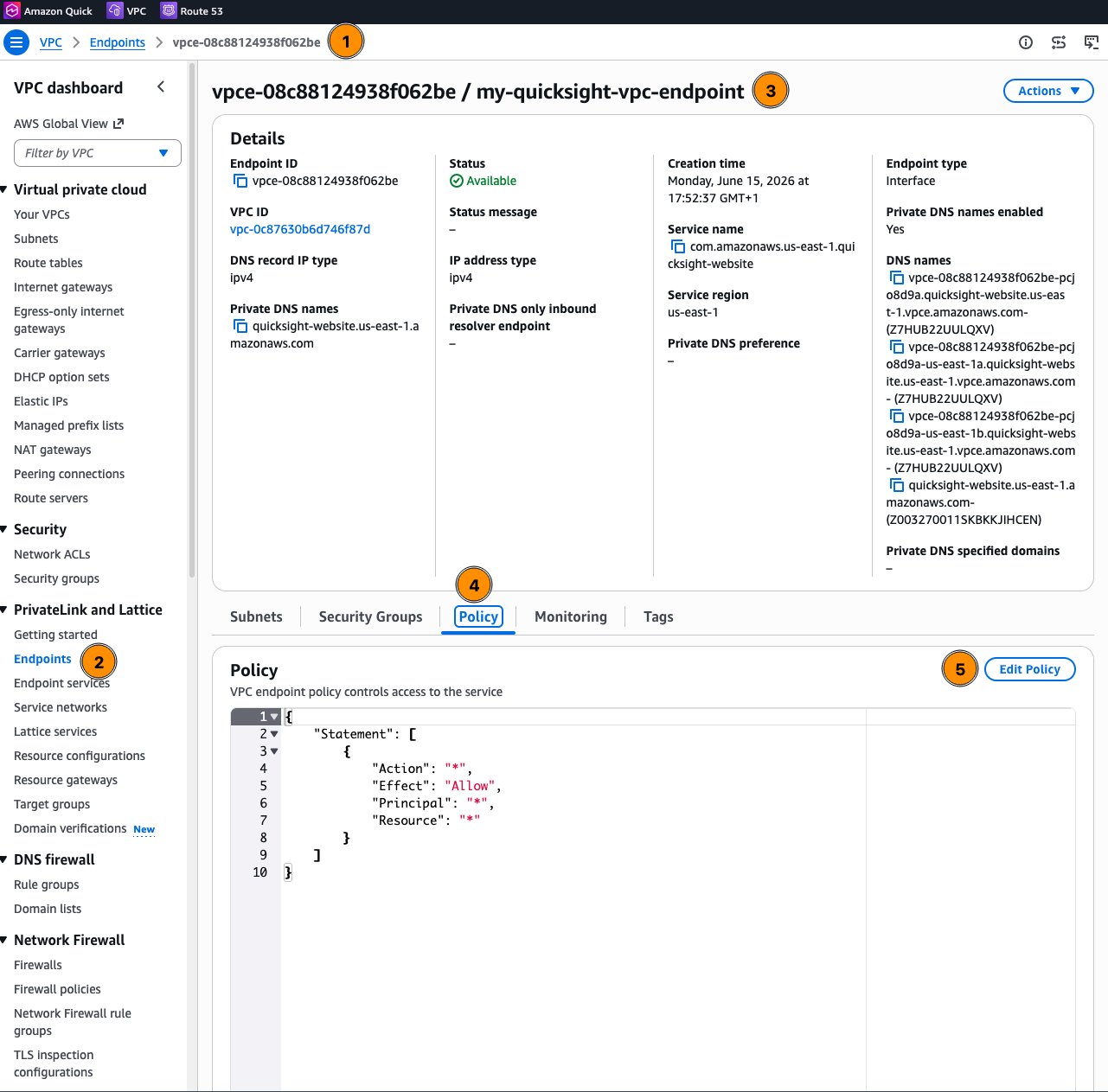
Figure 8: Opening the endpoint policy from the VPC endpoint details page
API endpoint polic